
Let’s be honest for a second. If you shoot photos regularly, your Mac is probably holding thousands of images scattered across folders named “Final,” “Final2,” and “Final_REALLY_FINAL.” Some are on your desktop, some are on an external drive, and a few are hiding in an old backup you forgot about. Finding one specific photo from a shoot two years ago can feel like searching for a needle in a haystack. That is exactly the problem good photo management software solves.
The right tool does much more than store your pictures. It helps you sort, rate, tag, search, back up, and edit your files without turning your life upside down. Whether you are a wedding photographer with 200,000 images, a product shooter handling client work every week, or a family person who just wants to find last summer’s holiday pictures, choosing the best photo management software Mac users can get is one of the smartest decisions you can make for your workflow.
In this guide, we will walk you through ten great options for 2026. We will tell you what each one does well, where it falls short, and who it suits best. Think of this as a friendly chat before you buy, so you can compare your options calmly and pick a tool you will happily use for years. Grab a coffee, and let’s get into it.

How We Compared These Tools
Before we jump into the list, here is how we judged each program. We looked at how well it handles large libraries, because many apps feel fast with 2,000 photos and then crawl at 50,000. We checked how good the search and organizing tools are, including keywords, ratings, color labels, face recognition, and smart albums. We also looked at RAW file support, since most serious shooters work with RAW files, and at how well each app works on modern Macs with Apple Silicon chips.
Price mattered too. Some tools charge a monthly subscription, some want a one-time payment, and a few are completely free. Finally, we thought about the learning curve. A powerful app is no use if it takes three weeks to figure out how to import a folder. The programs below are listed from the strongest all-round pick to more specialized choices, so read through all of them, because the best photo management software Mac photographers need depends heavily on how they work.
Adobe Lightroom Classic: Best for Serious Photographers
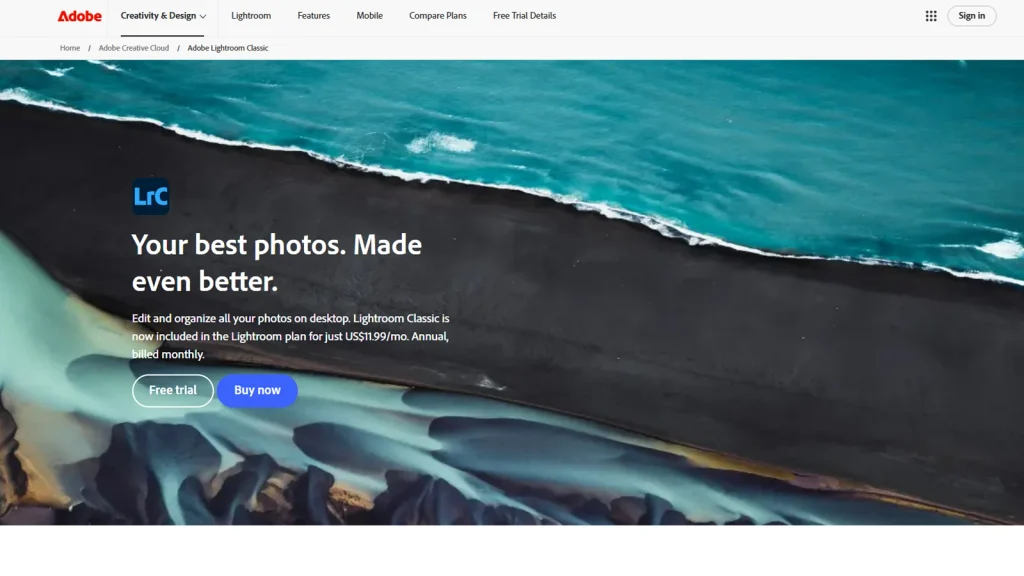
Adobe Lightroom Classic is the name most photographers think of first, and for good reason. It combines a powerful library module with a full set of editing tools, so you can import, organize, and edit in one place. The catalog system lets you manage huge collections without moving your original files around, and you can search by keyword, date, camera, lens, rating, or even the kind of edit you applied.
What makes Lightroom Classic stand out is how smoothly it fits into a professional routine. You can create collections for each client, apply presets to hundreds of photos in a few clicks, sync edits across a whole shoot, and export in any size or format you need. The AI-powered masking and search tools keep getting better, which saves a lot of time on big jobs. Adobe also keeps updating it regularly, so it stays current with new cameras and RAW formats.
The main drawback is the subscription model. You pay every month, and if you stop, you lose access to the editing features, although your catalog stays viewable. It can also feel heavy on older Macs, and beginners may find the interface a bit crowded at first.
Pros
- Excellent catalog and search tools for very large libraries
- Powerful RAW editing built into the same app
- Strong presets, batch editing, and export options
- Regular updates and wide camera support
Cons
- Ongoing subscription cost
- Can feel slow on older or low-memory Macs
- Takes time to learn for complete beginners
Apple Photos: Best Free Option for Everyday Users
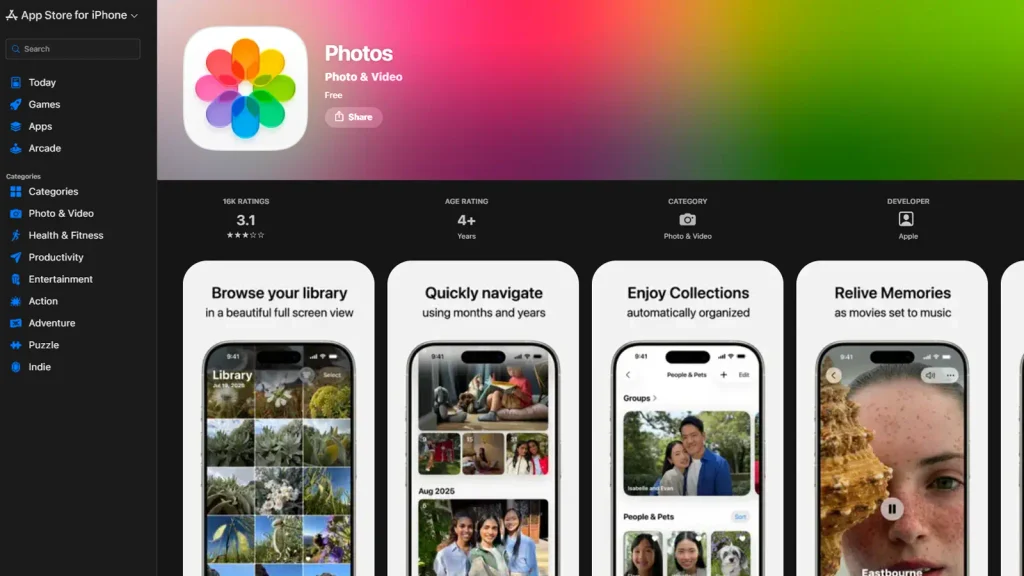
If you want something that simply works, Apple Photos is already sitting on your Mac. It is free, it is simple, and it syncs beautifully with your iPhone and iPad through iCloud. Open it up and your pictures are already sorted by date, location, and people. Face recognition works well, and the search is surprisingly smart, so typing words like “beach” or “birthday” usually brings up the right pictures.
For families and casual shooters, this is often all you need. The editing tools are friendly, with easy sliders for light, color, and cropping. Memories and shared albums make it fun to look back and share moments with others. For many people, it is the best photo management software Mac owners can start with, since there is nothing to install and nothing to pay for.
The trouble starts when your needs grow. Photos has limited keyword tools, weak batch metadata options, and not much control over how files are stored. Professionals who need detailed tagging, client workflows, or tethered shooting will outgrow it quickly. Storage can also get expensive if you rely on iCloud for a very large library.
Pros
- Free and built into macOS
- Seamless sync with iPhone and iPad
- Easy face and object search
- Very beginner friendly
Cons
- Limited professional organizing tools
- Little control over file structure
- iCloud storage costs add up for large libraries

Capture One Pro: Best for Studio and Tethered Shooting
Capture One Pro has a loyal fan base among studio photographers, fashion shooters, and commercial professionals. It is famous for gorgeous color handling and excellent RAW processing, and many people say the skin tones and fine detail look better right out of the box. It organizes images using catalogs or sessions, and the session system is especially handy for people who work on one project at a time.
The tethering is where Capture One really shines. If you connect your camera to your Mac during a shoot, you can see images appear on screen instantly, apply styles on the fly, and share the live view with a client. The layers, masking, and color editing tools are powerful, and the interface can be customized to match how you work. For product and studio teams, it is a serious contender.
On the downside, it has a steeper learning curve than most apps on this list, and the price is high compared with simpler tools. The library features are good but not quite as flexible as Lightroom’s when it comes to searching a massive archive. If your work is mostly in the studio, though, it deserves a close look.
Pros
- Outstanding color and RAW quality
- Best-in-class tethered shooting
- Flexible session and catalog options
- Highly customizable workspace
Cons
- Expensive compared with many rivals
- Steeper learning curve
- Library search is less flexible than some competitors

Photo Mechanic: Best for Fast Culling
Photo Mechanic does one job and does it incredibly well: it lets you go through thousands of photos at lightning speed. Sports, news, and event photographers love it because it can preview RAW files almost instantly, without waiting for slow thumbnails to load. You can tag, rate, caption, and add metadata to a whole batch in seconds, which is a huge time saver when a client needs images quickly.
Its strength is the front end of your workflow. Many photographers use it to import, cull, and tag their photos, and then send the keepers to Lightroom or Capture One for editing. The metadata tools are among the most powerful you will find, including templates and variables that fill in details automatically. If speed is your biggest pain point, this tool can feel like magic.
The interface looks a little old-fashioned, and it is not an editing program, so you will need another app for that part of the job. It also costs more than some people expect for what is essentially a viewer and organizer. Still, for high-volume shooters, the time saved easily justifies it.
Pros
- Extremely fast previews and culling
- Powerful metadata and captioning tools
- Great for high-volume event and sports work
- Works well alongside other editors
Cons
- No real editing tools
- Dated-looking interface
- Higher price for a single-purpose tool
Mylio Photos: Best for Syncing Across Devices Without the Cloud
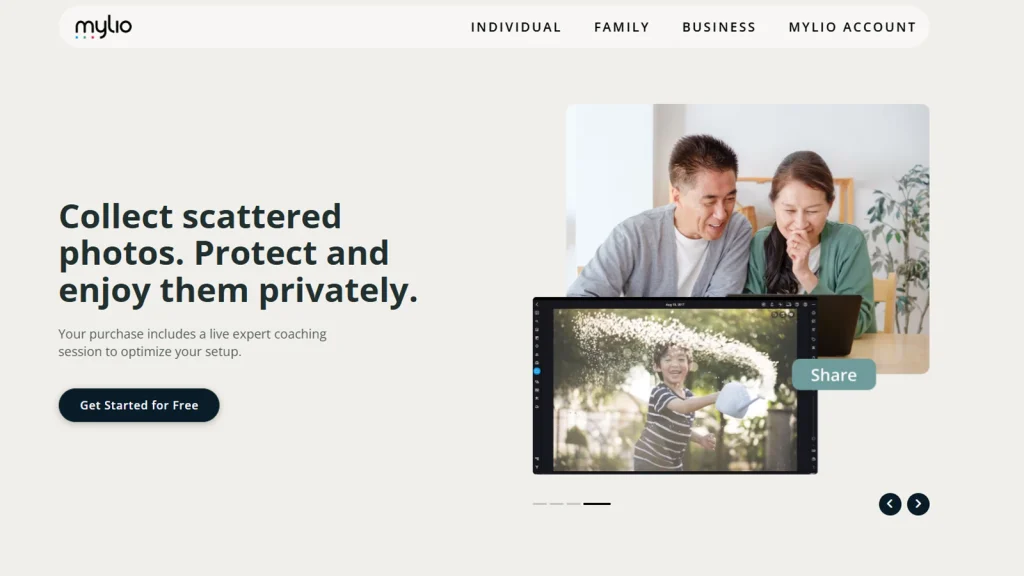
Mylio Photos takes a different approach. Instead of forcing everything into a cloud service, it syncs your library directly between your Mac, your phone, your tablet, and your external drives. Your whole collection can appear on every device, even when you are offline, and you decide where the original files live. If you worry about monthly cloud fees or privacy, this is an attractive idea.
It also includes face tagging, calendar views, maps, and a clean, friendly layout. The app can pull together photos from many sources, such as old hard drives, scanned prints, and phone backups, into one tidy timeline. That makes it a lovely choice for people who want to finally rescue decades of scattered memories. Many families find it a calm, easy way to build a lasting photo archive.
The downside is that its editing tools are basic, and professional photographers may miss the deep metadata and tethering features found elsewhere. Initial setup with a very large library can take time, and some of the best features sit behind paid plans.
Pros
- Syncs across devices without depending on one cloud service
- Great for gathering scattered photo collections
- Good face tagging and timeline views
- You keep control of your original files
Cons
- Basic editing tools
- Initial setup can be slow for big libraries
- Some features need a paid plan
ON1 Photo RAW: Best One-Time Purchase Option
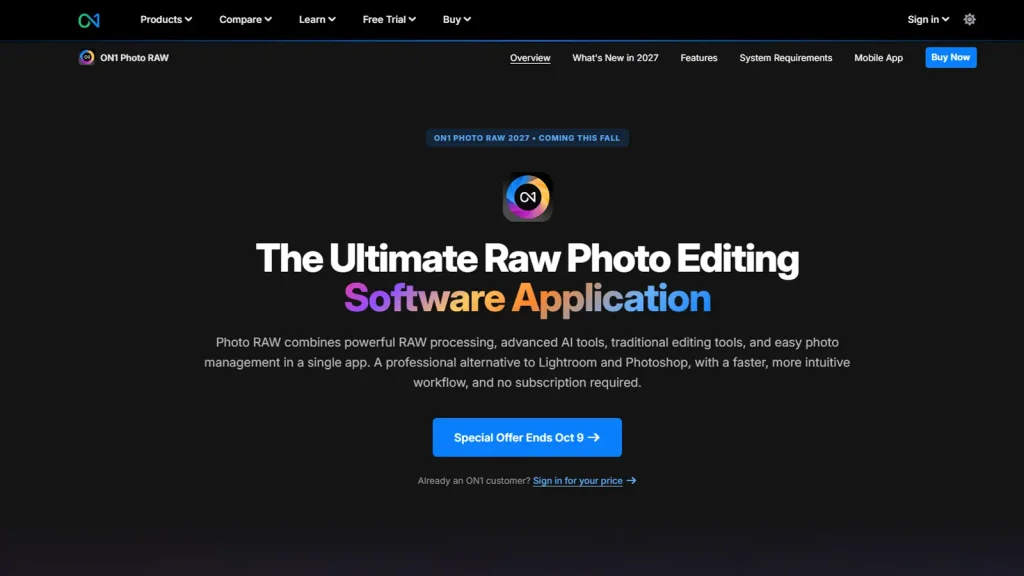
ON1 Photo RAW is a great pick for photographers who are tired of subscriptions. It gives you a browser, a library, a RAW editor, layers, and plenty of creative effects in a single app. You can browse folders directly without importing everything into a catalog first, which feels refreshing if you just want to open a folder and get started.
The organizing tools include keywords, ratings, color labels, and face recognition, and the editing side has smart masking, portrait tools, and noise reduction powered by AI. It also works as a plugin for other editors, which is useful if you already own different software. For hobbyists and enthusiasts who want a lot of power without a monthly bill, it is one of the best photo management software Mac buyers can compare against Lightroom.
The catch is that it can run slowly on very big libraries, and some users report that the interface feels busy. Major new versions are sold as separate purchases, so you may pay again later to upgrade.
Pros
- Offered as a one-time purchase
- Browse folders without a forced import
- Strong AI editing and masking tools
- Works as a standalone app or a plugin
Cons
- Can lag with very large libraries
- Interface may feel crowded
- Major upgrades may cost extra

Adobe Bridge: Best Free Organizer for Adobe Users
Adobe Bridge is often overlooked, which is a shame, because it is free and very capable. It is a file browser built for creative people, and it works especially well if you already use Photoshop, Lightroom, or Illustrator. You can preview RAW files, batch rename, add keywords and ratings, and sort through folders quickly, all without building a catalog.
Many designers and editors keep Bridge open all day. It handles photos, videos, PDFs, and design files in one view, which is handy for mixed projects. You can also set up collections, filter by metadata, and open files straight in the right Adobe program. For people who do not want to commit to a full catalog system, it offers a lightweight and flexible alternative.
Because it is a browser rather than a database, searching across a huge archive is slower and less powerful than in Lightroom. It also does not offer built-in editing beyond basic adjustments, so you will need another app to do the heavy lifting.
Pros
- Free with an Adobe account
- Great for mixed file types
- Fast folder browsing and batch renaming
- Opens files directly in Adobe apps
Cons
- No true catalog database
- Slower searching in huge archives
- Minimal editing tools
digiKam: Best Free and Open-Source Choice
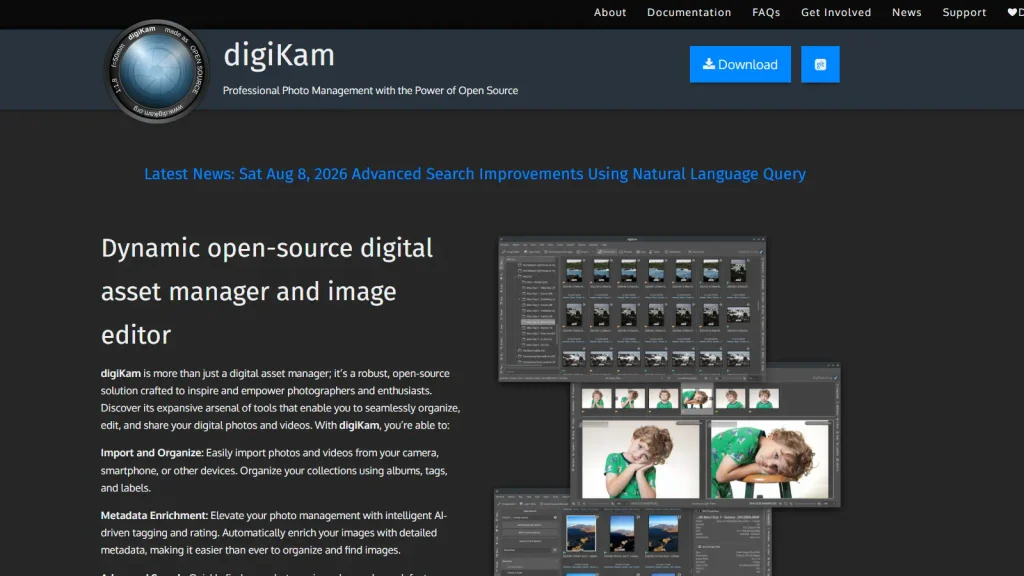
digiKam is for people who love control and do not mind a little tinkering. It is a free, open-source photo manager that is surprisingly deep. You get tagging, ratings, face detection, geolocation, duplicate finding, and powerful metadata editing, all at no cost. It also supports a wide range of RAW formats, and you can store your database locally or on a network server, which suits teams and archivists.
The best part is that you are not locked into anyone’s ecosystem. Your photos stay in normal folders, and the metadata can be written into the files themselves, so you can move to another program later without losing your work. If you have a huge library and a tight budget, digiKam deserves a serious look.
The trade-off is polish. The interface looks more technical than friendly, setup can feel confusing, and the Mac version sometimes lags behind other platforms in smoothness. Editing tools exist but are modest compared with paid rivals.
Pros
- Completely free and open source
- Excellent tagging, metadata, and duplicate tools
- Your files are never locked in
- Supports large libraries and network databases
Cons
- Interface feels technical
- Setup has a learning curve
- Editing tools are basic
Luminar Neo: Best for Creative AI Editing
Luminar Neo is built around artificial intelligence, and it makes editing feel fast and fun. With a few clicks you can replace skies, relight a scene, smooth skin, remove dust spots, or sharpen details. It is a good fit for landscape shooters, travelers, and social media creators who want eye-catching results without spending hours on manual adjustments.
It does include a basic library view, so you can browse and sort your pictures, and it works well as both a standalone app and a plugin. If your priority is quick, beautiful editing and you only need light organizing, it can be a joyful tool to use.
However, it is not a full management system. The cataloging, keywording, and search tools are limited, so large archives will feel cramped. Some users also find that heavy AI effects can look overdone if you are not careful.
Pros
- Powerful and easy AI editing tools
- Great for creative and travel photography
- Works as an app or plugin
- Modern, friendly interface
Cons
- Limited library and search features
- Not ideal for very large archives
- AI effects can look overdone

ACDSee Photo Studio for Mac: Best for Budget-Friendly Organizing
ACDSee has been around for a long time, and its Mac version offers a solid mix of organizing and editing at a friendly price. You can browse, rate, tag, and categorize photos, and the RAW editor handles common adjustments well. A big plus is that you can see your folders directly, without needing a complicated import step, so it feels natural and quick.
It also includes batch processing, face detection, and flexible metadata options, which makes it useful for small studios and busy hobbyists. If you want something that sits between the simplicity of Apple Photos and the depth of Lightroom, ACDSee is worth considering, particularly if you prefer to buy software outright.
The Mac edition is generally less feature-rich than its Windows sibling, and the community around it is smaller, so you will find fewer tutorials and presets. Some people also find the design a bit dated.
Pros
- Good value for the features offered
- Direct folder browsing without heavy imports
- Batch processing and flexible metadata tools
- Option to buy rather than subscribe
Cons
- Fewer features than the Windows version
- Smaller community and fewer learning resources
- Dated look in places
How to Choose the Right Tool for You
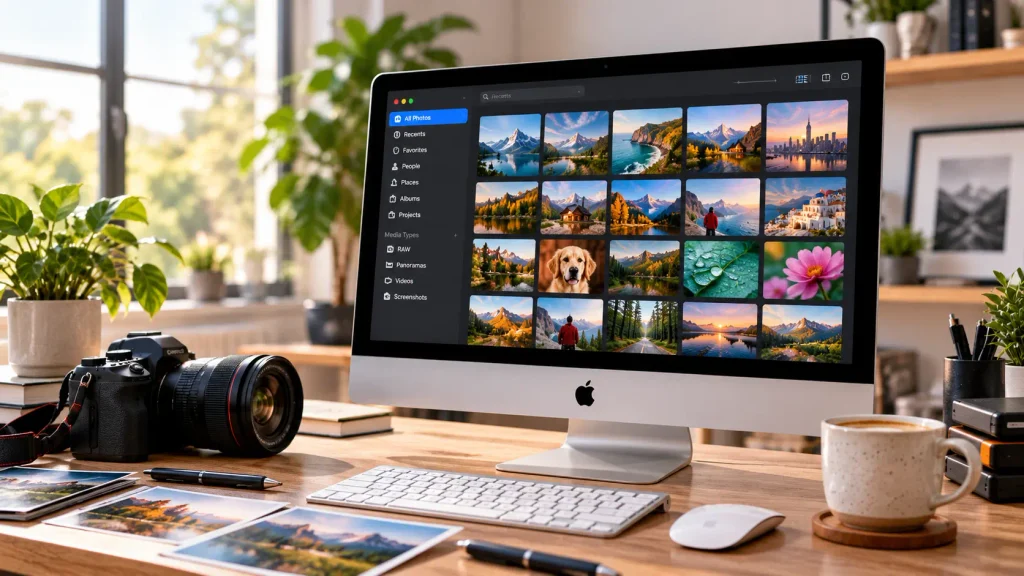
With ten options on the table, it helps to narrow things down by how you actually work. If you are a professional who edits heavily and manages tens of thousands of files, Lightroom Classic and Capture One are the natural starting points. If you shoot events and need to cull thousands of images fast, Photo Mechanic pairs beautifully with either of them. Families and casual shooters will probably be perfectly happy with Apple Photos, or with Mylio Photos if they want to pull in memories from many places.
If money is tight, digiKam and Adobe Bridge cost nothing, and ON1 Photo RAW or ACDSee let you pay once instead of every month. If you love creative, AI-driven looks, Luminar Neo is the fun pick. Whatever you choose, try the free trial first, import a real folder of your own photos, and see how it feels after a day or two. The best photo management software Mac users rave about is only the best if it fits your habits.
One more tip: whatever program you pick, set up a simple folder structure and a backup routine on day one. Use the 3-2-1 idea, which means three copies of your files, on two different types of storage, with one copy stored somewhere else. Software can organize your photos, but only a good backup can protect them.

When Software Isn’t Enough: Let Graphics Revive Handle the Editing
Here is something many photographers learn the hard way. Even with the best photo management software Mac has to offer, your day still has only so many hours. Sorting and tagging is only half the job. The other half is editing, and when a big batch of images lands on your desk, it can eat up your evenings and weekends.
That is where Graphics Revive comes in. We are an image editing service built for photographers, studios, agencies, and online sellers who want polished results without doing every edit themselves. Our editors handle retouching, color correction, background removal, object cleanup, exposure fixes, and bulk batch editing, and we match your preferred style so your portfolio keeps a consistent look from the first image to the last.
We also know that deadlines matter, so we focus on quick turnaround times and clear communication. You can send us a handful of photos or a few thousand, and we will treat both with the same care. Revisions are part of the process, because we want you to feel happy with the final result. Your files are handled carefully and kept private, which is important for client work and unreleased campaigns. Our prices are friendly too, so you can grow your business without hiring a full-time editor.
The two really do work well together. Use your favorite manager to cull and organize your shoot, send us the keepers, and get edited images back ready to deliver. If you want to try it, just reach out with a small test batch and see the quality for yourself.

Final Thoughts
Choosing from the best photo management software Mac users rely on comes down to knowing yourself. Lightroom Classic remains the strongest all-rounder, Capture One rules the studio, Photo Mechanic wins on speed, and Apple Photos keeps things easy for everyday life. Mylio, ON1, Bridge, digiKam, Luminar Neo, and ACDSee each offer a smart answer for a specific type of person or budget.
Take your time, test a couple of favorites, and build a workflow that makes your photo life lighter instead of heavier. Get your library organized, protect it with solid backups, and let the right tools, and the right people, take care of the time-consuming parts. Your future self, the one who can find any photo in seconds, will be very grateful.
