
If you work with photos on your computer, sooner or later you’ll want to shrink a whole folder of images at once. Maybe your iPhone photos are huge, your website loads slowly, or your email refuses to send big attachments. This is where learning how to batch resize images Mac becomes super useful. Instead of resizing one photo at a time, you can resize dozens or even hundreds in a single go.
The good news is that macOS already gives you powerful tools to do this. You don’t need to be a pro designer, and you don’t have to buy expensive software. In this guide, we’ll walk through multiple beginner-friendly ways to batch resize images Mac, using apps like Preview, Photos, Automator, and some third-party options.
We’ll also talk about when you should resize, what settings to choose, and how to avoid ruining image quality. By the end, you’ll know exactly how to batch resize images Mac for websites, emails, social media, clients, or personal projects. If you ever feel stuck or want professional help, you can always team up with our image editing experts at Graphics Revive.
What Does “Batch Resize Images Mac” Actually Mean?
Before we jump into tools, it’s helpful to understand what resizing really does. When you batch resize images Mac, you are changing the pixel dimensions of multiple photos at the same time. For example, a photo that is 4000 × 3000 pixels might be resized down to 1600 × 1200 pixels. The visual size on screen becomes smaller, and so does the file size in megabytes or kilobytes.
Resizing is different from cropping. Cropping cuts off parts of the image and changes the framing. Resizing keeps the entire photo but scales it down (or up, though upscaling usually reduces quality). When you batch resize images Mac, you apply the same size rule-like “make the longest side 1200 pixels”-to an entire folder full of photos, so everything comes out consistent.
This is especially important for websites, online stores, or online portfolios. Search engines and visitors both prefer fast-loading pages. Huge images slow everything down. Learning to batch resize images Mac helps you balance quality and speed, so your photos still look good but don’t take forever to load.
When Should You Batch Resize Images Mac?
You don’t have to resize every single picture on your Mac. Some photos should stay large, especially if they’re for printing or detailed retouching work. But there are many situations where it’s smart to batch resize images Mac before using them.
If you’re uploading products to an online shop, you want all images to be similar in size. This looks professional and keeps your pages lightweight. The same is true if you’re preparing images for a blog, social media, or a client presentation. When you batch resize images Mac, you can create a clean, consistent look across your whole project.
Resizing is also helpful for storage. Thousands of full-resolution photos will quickly fill your Mac’s SSD or iCloud storage. If you don’t need the original size, you can batch resize images Mac to a more reasonable resolution and free up a lot of space. Just remember: if you think you might need the full-size version later, keep a backup of the originals before resizing.
Preparing Your Files Before You Batch Resize Images Mac
A little preparation makes everything easier. Before you batch resize images Mac, put all the photos you want to change into a single folder. This reduces mistakes and helps you avoid accidentally resizing images you still need at full resolution.
It’s also a good idea to make a copy of that folder and work on the duplicate. That way, if you don’t like the results, you still have untouched originals. When beginners learn to batch resize images Mac for the first time, the most common mistake is overwriting the original files and then regretting it later. A simple duplicate saves you from that headache.
You should also think about where these resized images will be used. For websites, something like 1200–2000 pixels on the longest side is usually enough. For email attachments or small previews, maybe 800–1200 pixels will do. Decide your target size before you batch resize images Mac, so you don’t need to resize twice.
How to Batch Resize Images Mac with Preview
The easiest way to batch resize images Mac is with the Preview app, which comes pre-installed on every Mac. Many people only use Preview to open images or add quick signatures, but it also has powerful batch editing tools.
First, open Finder and select all the images you want to resize. You can drag a box around them or use Command + A inside the folder if you want everything. Then right-click and choose “Open With” and select “Preview.” All selected photos will open in a single Preview window, listed in the sidebar.
Next, click inside the sidebar and press Command + A again to select all images within Preview. From the menu bar, go to “Tools” and then “Adjust Size.” This is where the magic happens. A window will pop up with options for width, height, resolution, and scaling. Choose your target width or height, and make sure “Scale proportionally” is enabled so your photos don’t get stretched. Press OK, and Preview will batch resize images Mac instantly using your chosen settings.
Finally, go to “File” and choose “Save” or “Save All” depending on your macOS version. If you opened copies of your files, you’re safe to overwrite them. If not, use “Export” or “Save As” to create resized versions in a new folder. This Preview method is the simplest way for beginners to batch resize images Mac without installing any extra software.
How to Batch Resize Images Mac Using Photos App
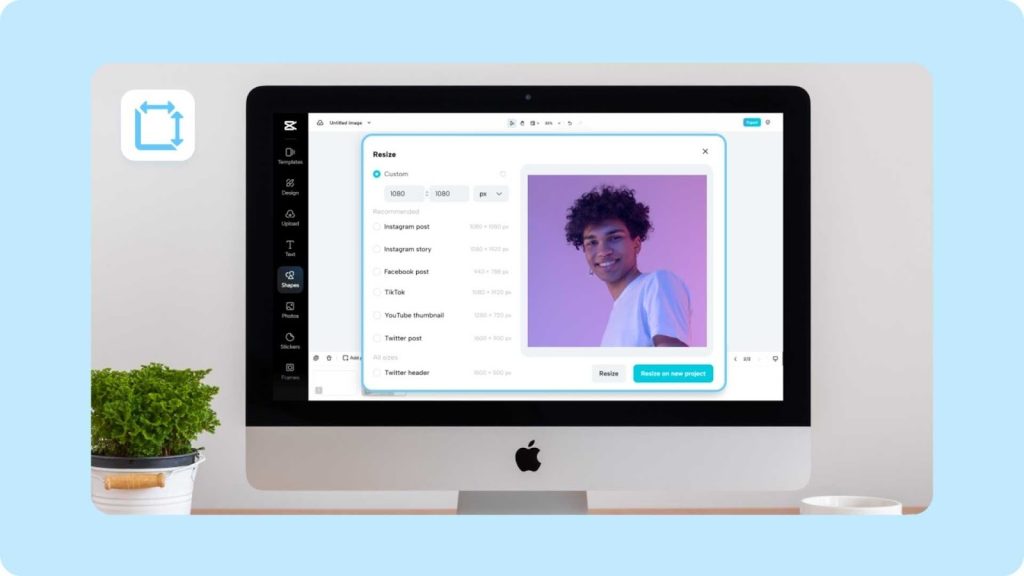
If your photos are already imported into the Photos app, you can also use it to batch resize images Mac before exporting. While Photos doesn’t directly offer a “resize” button, its export options let you control output size very easily.
Open the Photos app and select the images or albums you want to export at a smaller size. This might be a series of vacation images, product shots, or portraits. Once selected, click “File” in the top menu, then pick “Export,” and choose “Export X Photos” where X is your number of selections.
In the export settings, you’ll see options for file type, quality, and size. You can choose JPEG for good balance between quality and file size. Under “Size,” pick one of the presets like “Medium” or “Large,” or choose “Custom” and define the maximum dimension. When you click “Export” and choose a folder, Photos will batch resize images Mac based on those settings as it creates new files.
This approach is perfect if you manage everything inside Photos anyway. You can keep your original full-resolution images in your library while exporting web-ready or client-ready versions. It’s another beginner-friendly way to batch resize images Mac without extra tools.
How to Batch Resize Images Mac with Automator
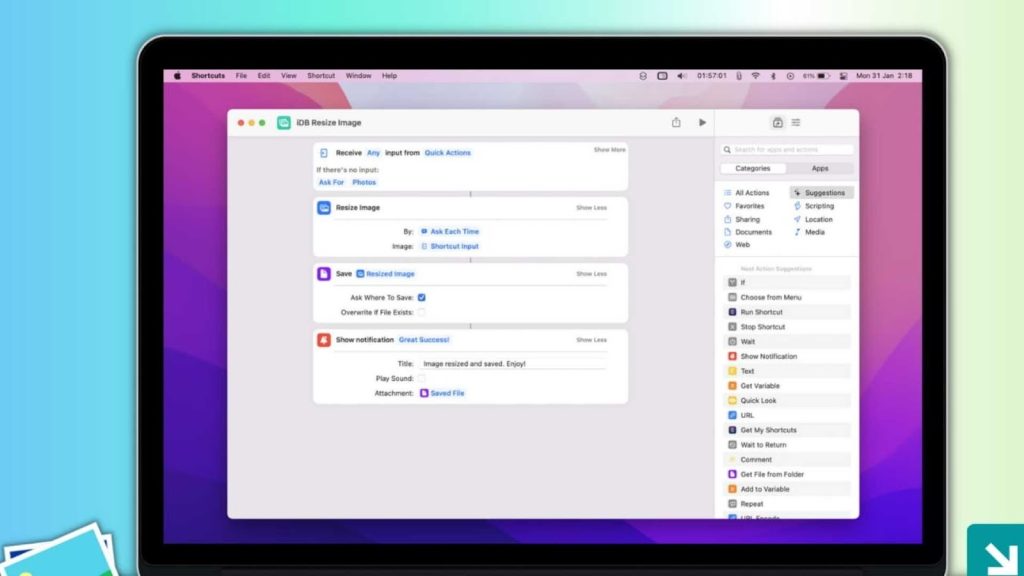
If you often need to resize images, Automator can save you a lot of time. Automator is a built-in macOS tool that lets you create simple workflows-almost like mini-apps that perform repetitive tasks for you. Once you set it up, you can batch resize images Mac just by right-clicking files in Finder.
To start, open Automator from your Applications folder. Create a new “Quick Action” or “Service,” depending on your macOS version. Set the workflow to receive image files in Finder. Then, in the left panel, search for “Scale Images” and drag that action into your workflow area. Automator will ask if you want to add a “Copy Finder Items” step first-say yes if you’d like to protect your originals.
In the “Scale Images” action, enter a number for the desired pixel size, such as 1200. This means Automator will batch resize images Mac so that the longest side becomes 1200 pixels. Save your workflow with a clear name like “Resize to 1200px.”
Now, whenever you select images in Finder and right-click them, you’ll find your custom action under the “Quick Actions” or “Services” menu. Clicking it will automatically batch resize images Mac according to the rule you set. This is great for people who frequently prepare images for blogs, ecommerce, or client deliveries.
Using Third-Party Apps to Batch Resize Images Mac
Built-in tools are powerful, but sometimes you might want more control-like renaming files, converting formats, or applying watermarks at the same time. That’s where third-party tools come in. There are many apps designed specifically to batch resize images Mac, often with a simple drag-and-drop interface.
You can search the Mac App Store for terms like “image resizer,” “batch image resizer,” or “photo resizer.” Many apps allow you to set exact pixel sizes, percentages, or maximum file sizes in kilobytes. Some also let you add logos or text watermarks while you batch resize images Mac, which is helpful for protecting your work online.
When choosing a third-party app, look for something that’s easy to understand and clearly shows a preview of what will happen. Always test it on a small set of images first. Once you find a tool you like, it can become your main way to batch resize images Mac for all kinds of different uses-websites, clients, social media, or even bulk email campaigns.
Online Tools to Batch Resize Images Mac (And When to Be Careful)
Another option is using online resizing websites. These tools let you upload images through your browser, set your target size, and then download the resized results. It’s a quick way to batch resize images Mac if you don’t want to install apps or if you’re working on a shared computer.
However, you should be careful about privacy. Never upload sensitive client images, confidential product photos, or personal pictures you don’t want on someone else’s server. Online tools usually process your images on their side, and while many are safe, you still need to think about security.
Online tools are best for small, non-sensitive projects where speed matters more than privacy. If you’re resizing stock photos, simple graphics, or social media filler images, they can be very handy. Just remember that for professional work, local tools like Preview, Photos, or Automator are often safer ways to batch resize images Mac.

Choosing the Right Settings When You Batch Resize Images Mac
Knowing which size to choose is just as important as knowing how to batch resize images Mac. If you go too small, your images may look blurry or pixelated. If you stay too large, your files may still be heavy and slow to load.
For websites and blogs, a common safe zone is between 1200 and 2000 pixels on the longest side, depending on your design. For social media, smaller sizes may be totally fine because platforms compress images anyway. For email, you might use even smaller dimensions so attachments don’t become too big.
You should also think about quality settings when you batch resize images Mac. When exporting JPEGs, many apps let you choose low, medium, high, or a percentage of quality. Something around 70–85% quality usually looks good while keeping file sizes manageable. Always compare a couple of samples before resizing hundreds of images, so you know your settings are correct.
Common Mistakes Beginners Make When They Batch Resize Images Mac
When you first batch resize images Mac, it’s normal to make a few mistakes-but they’re easy to avoid once you know what to watch out for. One of the biggest issues is forgetting to keep backups. If you resize and overwrite your only copy, you can’t get the original resolution back. Always work on duplicates or create a separate output folder.
Another common mistake is distorting images by turning off proportional scaling. If you change width but ignore height, or vice versa, your images might look stretched or squashed. When you batch resize images Mac, always make sure the “scale proportionally” or “keep aspect ratio” option is enabled.
Beginners also sometimes pick a size that’s far too small. Tiny images may look okay as thumbnails but bad as main product shots. It’s a good habit to resize a small test batch first, check how they look on your website or design, and only then batch resize images Mac for the rest of your collection.
Organizing Your Files After You Batch Resize Images Mac
Once you’re done resizing, you’ll have a mix of original and smaller versions. Good organization saves time in the long run. You can keep all your resized photos in clearly named folders like “Web_1200px,” “Email_800px,” or “Social_1080px.” This way, you always know which set to use for which purpose after you batch resize images Mac.
If you work with clients, you can even create separate folders per client or project. For example, “ClientName_Product_Resized” makes it obvious which images are ready to send. Clean organization makes it easier to avoid mixing up old, unedited files with polished, resized versions.
Over time, a simple system will help you move much faster. You’ll be able to batch resize images Mac, drop them into their correct folder, and then upload or deliver them without confusion or second-guessing.

When to Let Professionals Handle the Heavy Lifting
While it’s great to know how to batch resize images Mac on your own, there are times when the job is bigger than just resizing. Maybe you also need background removal, color correction, skin retouching, shadow creation, or complex ecommerce editing. That’s where professional services make a big difference.
At Graphics Revive, we don’t just batch resize images Mac for you; we provide complete image editing solutions tailored to your needs. Whether you’re an online store owner, photographer, agency, or brand, you can send us your raw images and get back web-ready, perfectly sized, professionally retouched photos.
You can visit Graphics Revive to learn more about our image editing services, see examples, and get in touch. Instead of spending hours resizing and tweaking every picture yourself, you can focus on growing your business while we handle the technical side.
Final Thoughts: Make Batch Resize Images Mac Part of Your Workflow
Learning how to batch resize images Mac is a small skill with a big impact. It helps your website load faster, makes your content look more consistent, and keeps your storage under control. With tools like Preview, Photos, Automator, third-party apps, and even online services, you have many ways to resize groups of images quickly and safely.
Start by practicing on a small folder. Use Preview to batch resize images Mac and experiment with different pixel sizes and quality settings. Once you’re comfortable, you can build a simple Automator workflow for even faster resizing. Keep your files organized, protect your originals, and always think about where each set of images will be used.
And whenever you need more than just resizing-like full ecommerce photo editing, retouching, or creative image enhancements-Graphics Revive is here to help. We provide professional image editing services that go far beyond basic size changes. Simply head over to graphicsrevive.com, send us your images, and let our team turn them into polished visuals that are ready to impress your audience.


